Register iOS Device
Developers need to register their iOS device to the Apple Developer Portal to be able to deploy and test the app from local machine.
The process is quite complex: download dev certificate, register device, update Provisioning Profile, download and install Provisioning Profile.
Fastlane match helps to manage the whole process.
Requirements
Ensure the machine is properly setup. Ensure the machine can build and launch the app on the iOS simulator.
yarn workspace native ios
Refer to the Getting started - iOS Setup guide.
Setup
Connect iPhone to laptop.
Open Xcode.
Enable iPhone for development.
Open Window/Devices and Simulators. Select iPhone and Copy UDID.
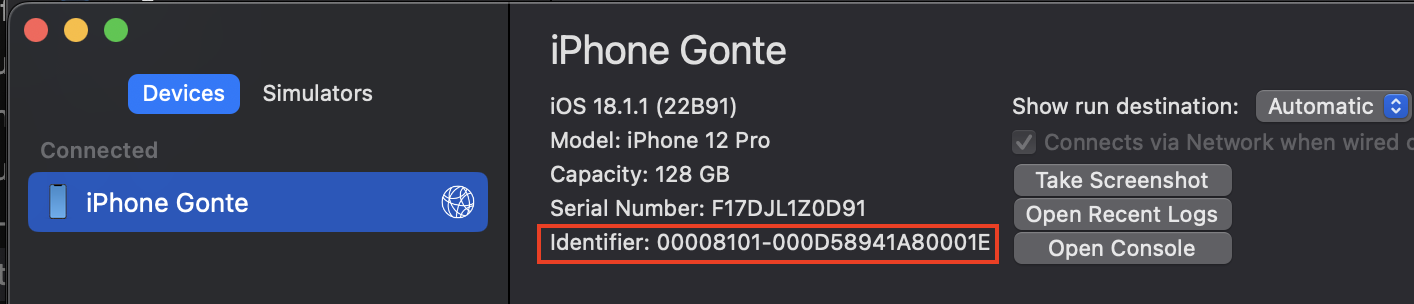
Fetch development certificate with (needs MATCH_PASSPHRASE from Dashlane)
yarn workspace native certificate:ios:development
Decrypt iOS Secret (needs APPSTORE_AUTHKEY from Dashlane)
cd ./packages/native/
sh fastlane/decrypt_ios_secret.sh
Add device ( ⚠️ needs write permission on ar-agent-frontend-certificates )
yarn workspace native add-device:ios user_name:"John Doe" device_name:"iPhone 15" device_udid:"00008101-XXXXXXXXXXXXXXXX" update_profiles:true
Fetch development certificate with
yarn workspace native certificate:ios:development
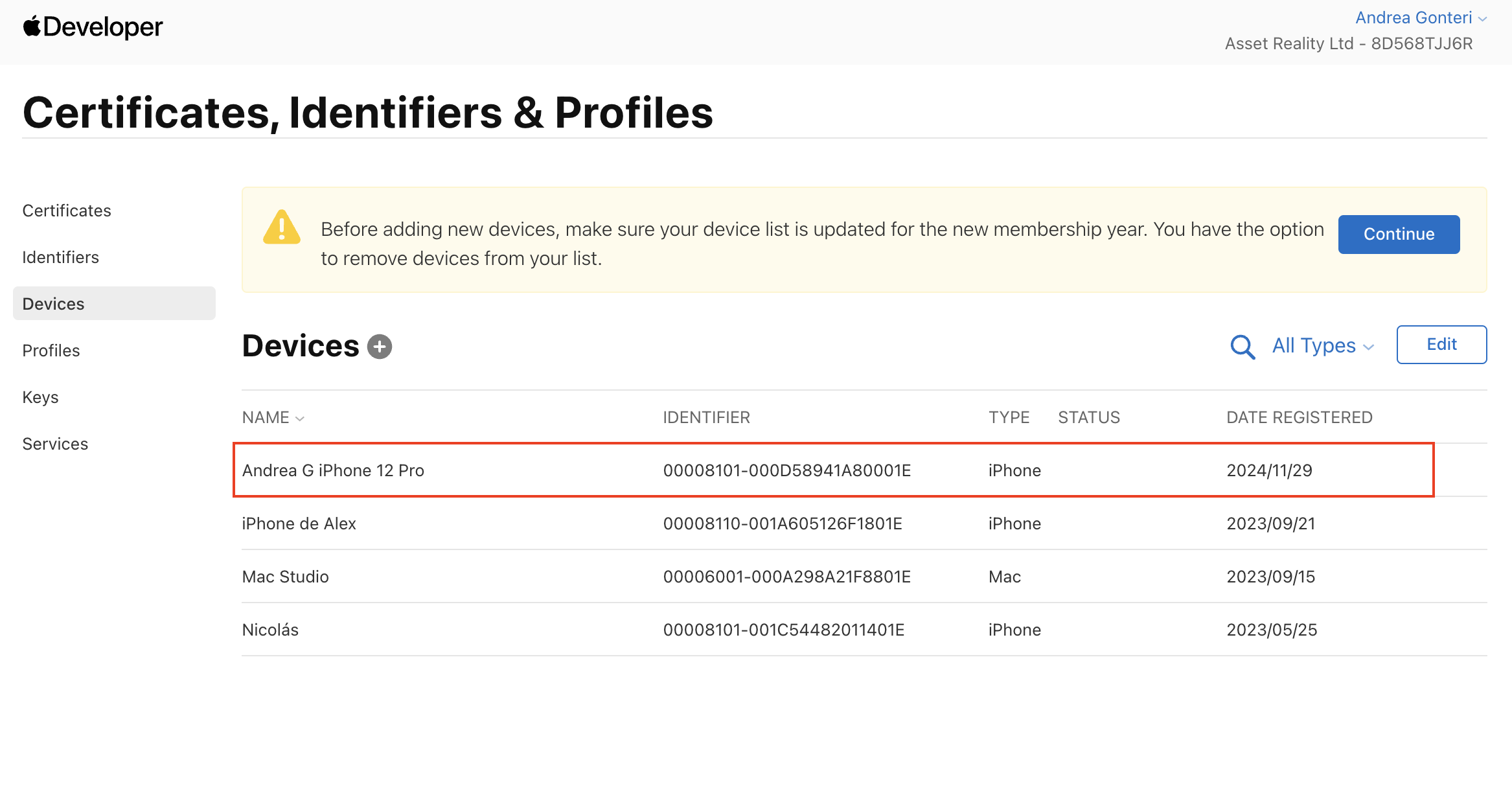
The device will be registered with the mobile provisiong profile, verify on Apple Developer Portal.
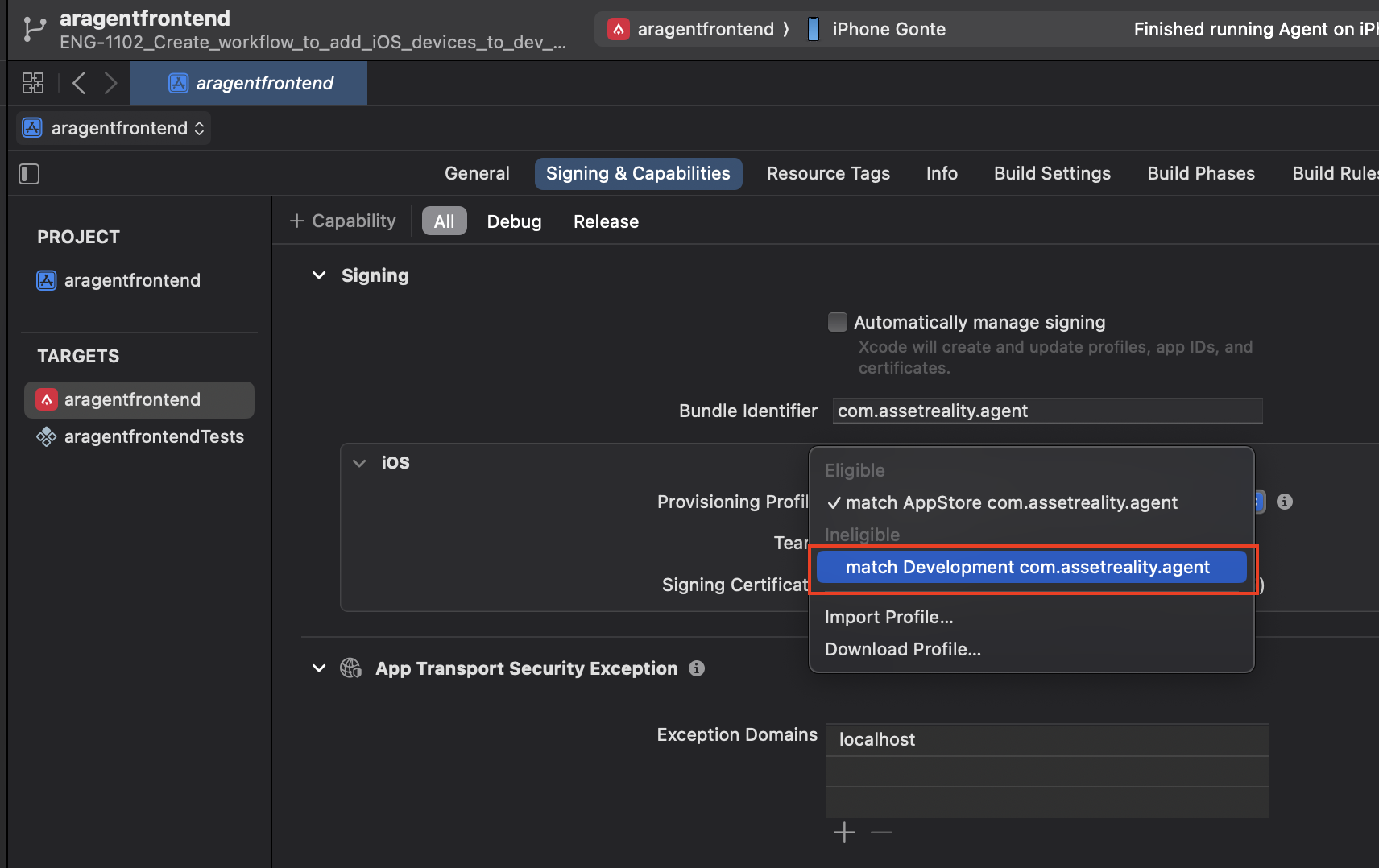
Temporary select development certificate on Xcode (see screenshot below).
Don't push this change to the repo.
Run Metro bundler on a terminal.
yarn workspace native start
Select the iOS device on Xcode, build and run.
The app will run in debug mode on the selected iOS device.
The app will use the javascipt bundle provided by Metro (in debug mode). iPhone and laptop should be on the same wifi network.